On this page
Introduction
PDF files are commonly used for reports, applications, invoices, assignments, presentations, scanned documents, and other types of digital documents. Sometimes the information you need is spread across several PDF files and you want to combine them into one document.
Merging PDFs allows you to combine multiple documents into a single PDF while keeping their pages together in one file. This can make documents easier to share, store, print, and organize.
In this guide, you will learn how to merge multiple PDF files using the FlagsDev PDF Merge tool.
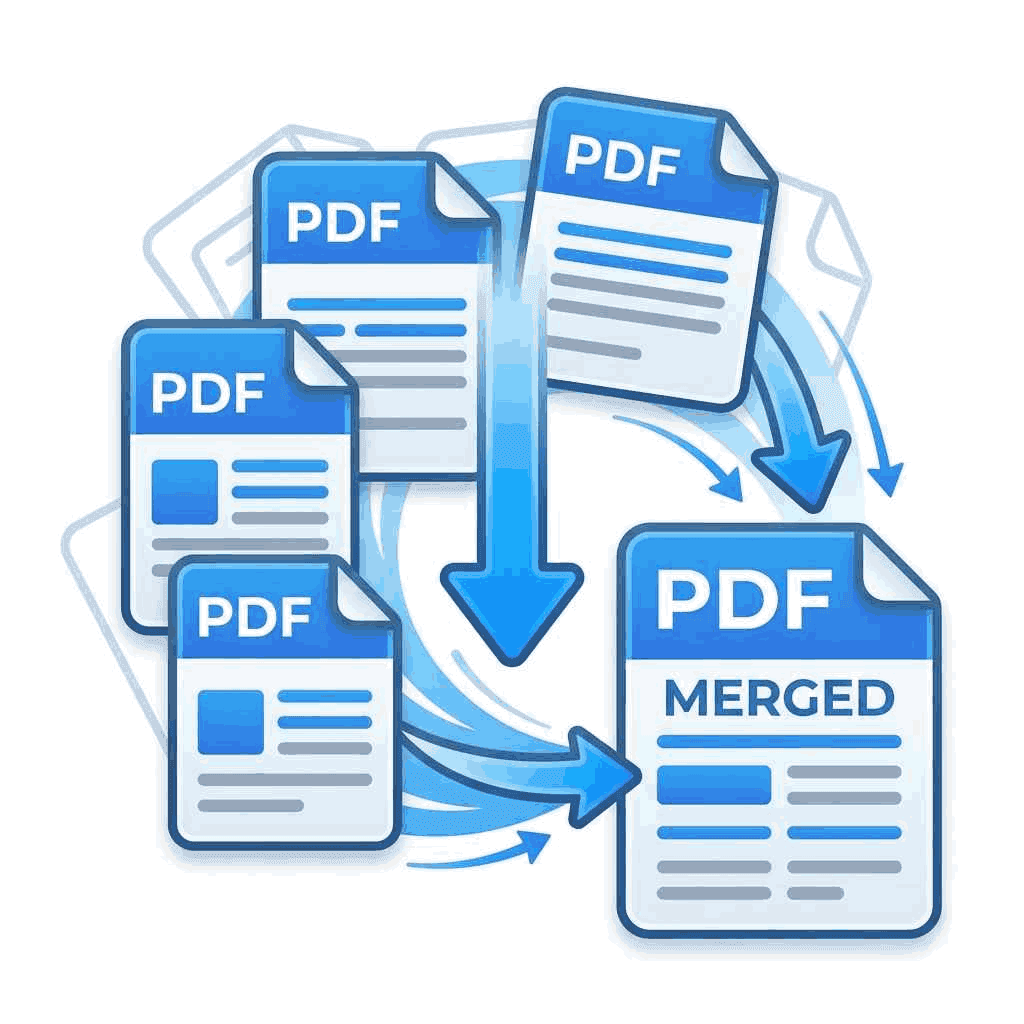
What is PDF merging?
PDF merging is the process of combining two or more PDF files into a single PDF document. The pages from each selected file are added to the resulting document in the order you choose.
For example, imagine you have three documents:
- Cover page
- Project report
- Appendix
Instead of keeping three separate files, you can merge them into one PDF with the following structure:
- Cover page
- Project report
- Appendix
The resulting PDF contains all the pages from the original documents in the order you specified.
This is particularly useful when you need to submit or share several related documents as one file.
How to merge PDFs
You can merge your PDF files in a few simple steps.
Open the Merge PDF tool
Open the Merge PDF tool.
The tool provides an interface where you can select the PDF files you want to combine.
Select your PDF files
Select the PDF documents you want to merge from your device.
You can select multiple PDF files. Make sure you include all of the documents you want in the final file.
Arrange the files
Review the selected files and arrange them in the order you want them to appear in the final document.
The order is important because the pages from the first file will appear before the pages from the second file, and so on.
Review the document order
Before creating the final PDF, check the order of your files carefully.
If a document is in the wrong position, rearrange it before continuing.
Merge the PDFs
When everything is in the correct order, start the merge operation.
The tool combines the selected PDF files into a single document.
Save the resulting PDF
Once the merge operation has completed, save the resulting PDF to your device.
You can then open, share, print, or store the new document like any other PDF.
Check the page order before merging
Privacy
Browser based processing
For the most accurate information about how data is handled, review the FlagsDev Privacy Policy.
Ready to merge your PDFs?
Combine your PDF files into one organized document with the FlagsDev Merge PDF tool.
Open Merge PDF Tool